| wiki1880: Home page | ||
|
Login and Access to New Digital.ai Support Portal
1. Login to the new Support Portal using this link: support.digital.ai 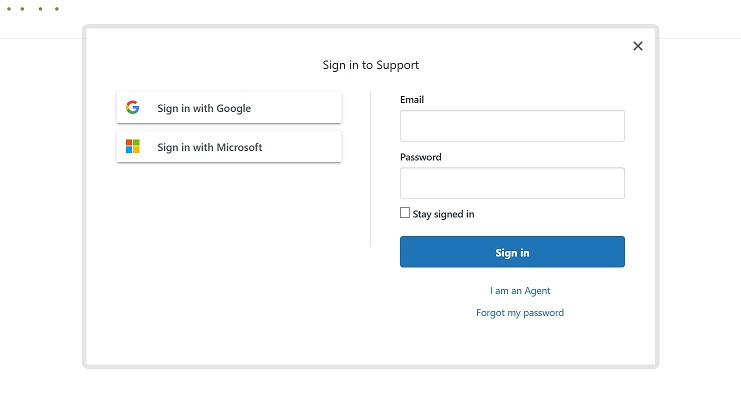 2. If you have an existing Gmail account or Microsoft Outlook account with the registered email address, then you can use the same password to login the portal. 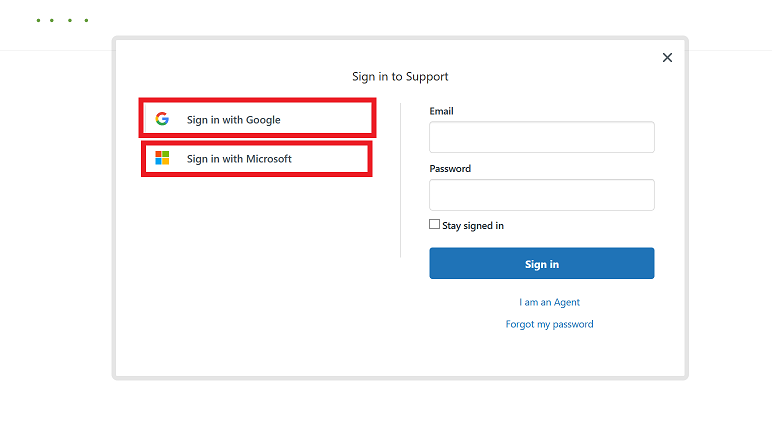 3. In case of non-Gmail and non-Microsoft account or to have a dedicated password for Support portal login, reset your password using 'Forgot my Password' option and login through normal Sign in. 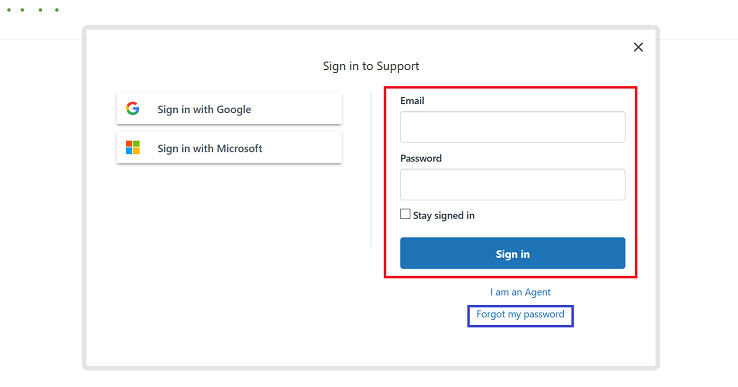 4. After sign-in Support Portal Homepage looks like this. View your username in top right corner. 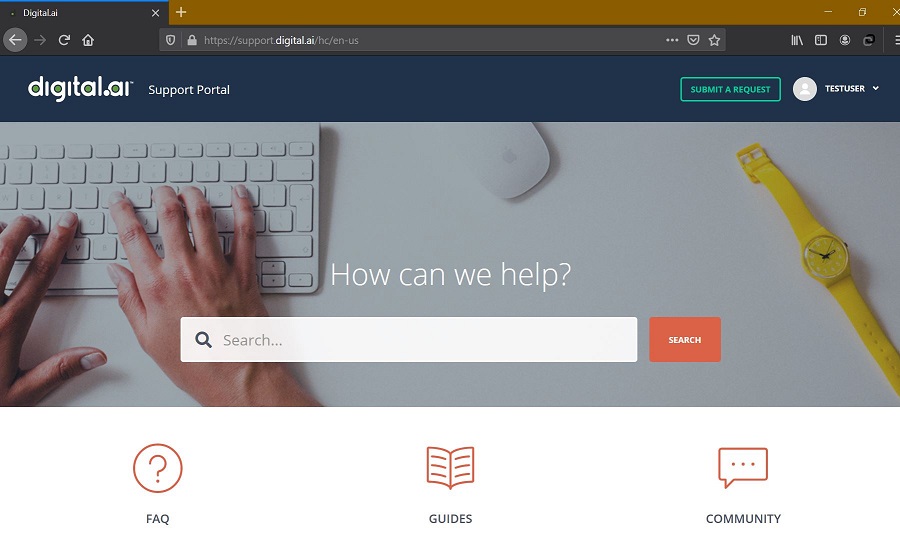 5. Create a new Support request using the option 'Submit a Request' at top right corner in Homepage. 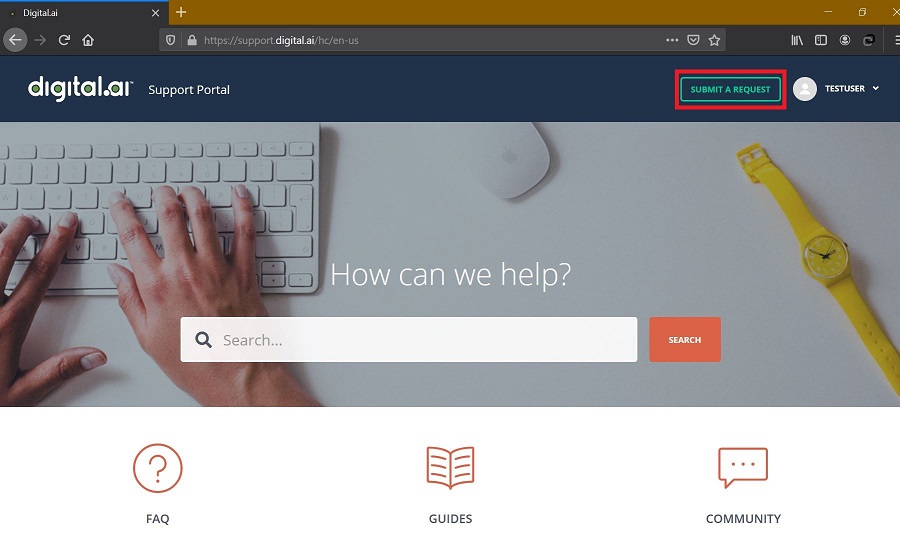 Sample view of filled-in Support Request page 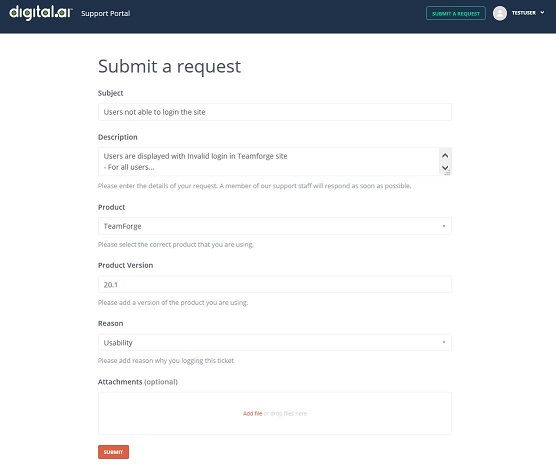 6. View existing requests and old requests from - My Activities page 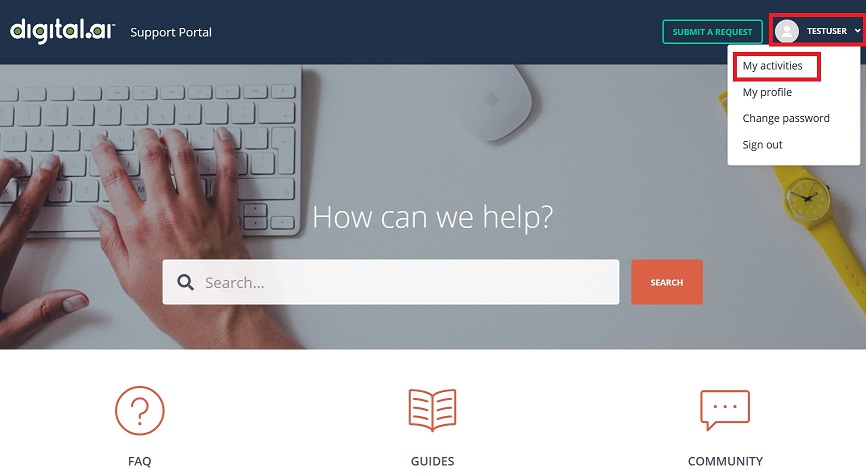 7. Here we have three views to list the Support requests. 'My Requests' -- Requests created by self 'Requests I'm CC'd on' -- Requests created by other user and added as CC 'Organization requests' -- All the Requests of your Organization 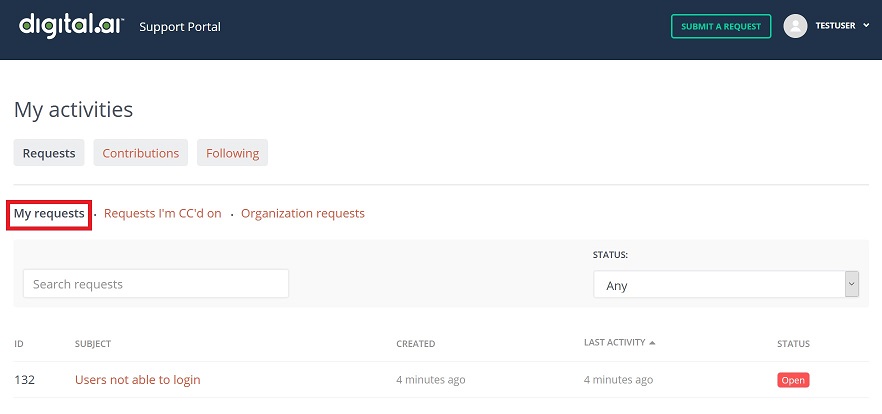   8. Search for requests in the Search bar using request number or any keyword related to the case  9. The Key feature of the new Support Portal is to view articles related to your problem/ requests. There are 3000+ articles already in the portal which helps in solving most of the problems. The articles are well-described with appropriate errors, log entries, work-arounds or solutions. There are more than one way of searching for a solution article as illustrated here: Auto-populating solution while creating a request - While creating a new Request from homepage, just type-in the Subject line, related solution articles will be auto-populated.  10. Search solution articles from Homepage  11. View complete solution articles in the portal through: Homepage > General Help> Application Lifecycle Management > Teamforge > Search    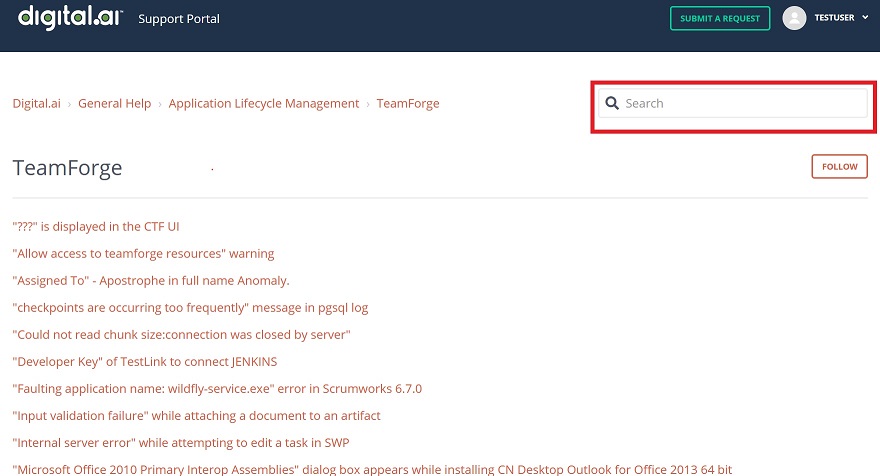
|
||

 Show Details